Remove Text Without Blurring the Background
Replace the lettering inside your selection with an estimated background. Check moving edges and patterned surfaces closely: a repair can look convincing on one frame yet become noticeable during playback.
ONLINE AI VIDEO TEXT REMOVER
Clear burned-in captions, recording labels and unwanted lettering from footage you want to reuse.Choose where the repair applies, then inspect the exported clip before adding new titles or sharing it.
A CLOSER LOOK AT THE REPAIR
Use the one-time trial to remove text from video and judge the result on your own footage. A small caption over a plain wall is a different challenge from lettering crossing hair, waves or a moving crowd. The repair estimates the hidden scene; it cannot recover an exact record of pixels that were covered in the source.
Replace the lettering inside your selection with an estimated background. Check moving edges and patterned surfaces closely: a repair can look convincing on one frame yet become noticeable during playback.
Keep the box close to the lettering, including its outline or shadow. Set a start and end time so the repair does not affect a title or subject that appears later.
A caption near the bottom should not cost you the rest of the shot. The export retains the canvas dimensions, keeping your composition available for a later edit or platform crop.
Different overlays need different selections. Start with the smallest area that contains the complete lettering, then review it in motion.
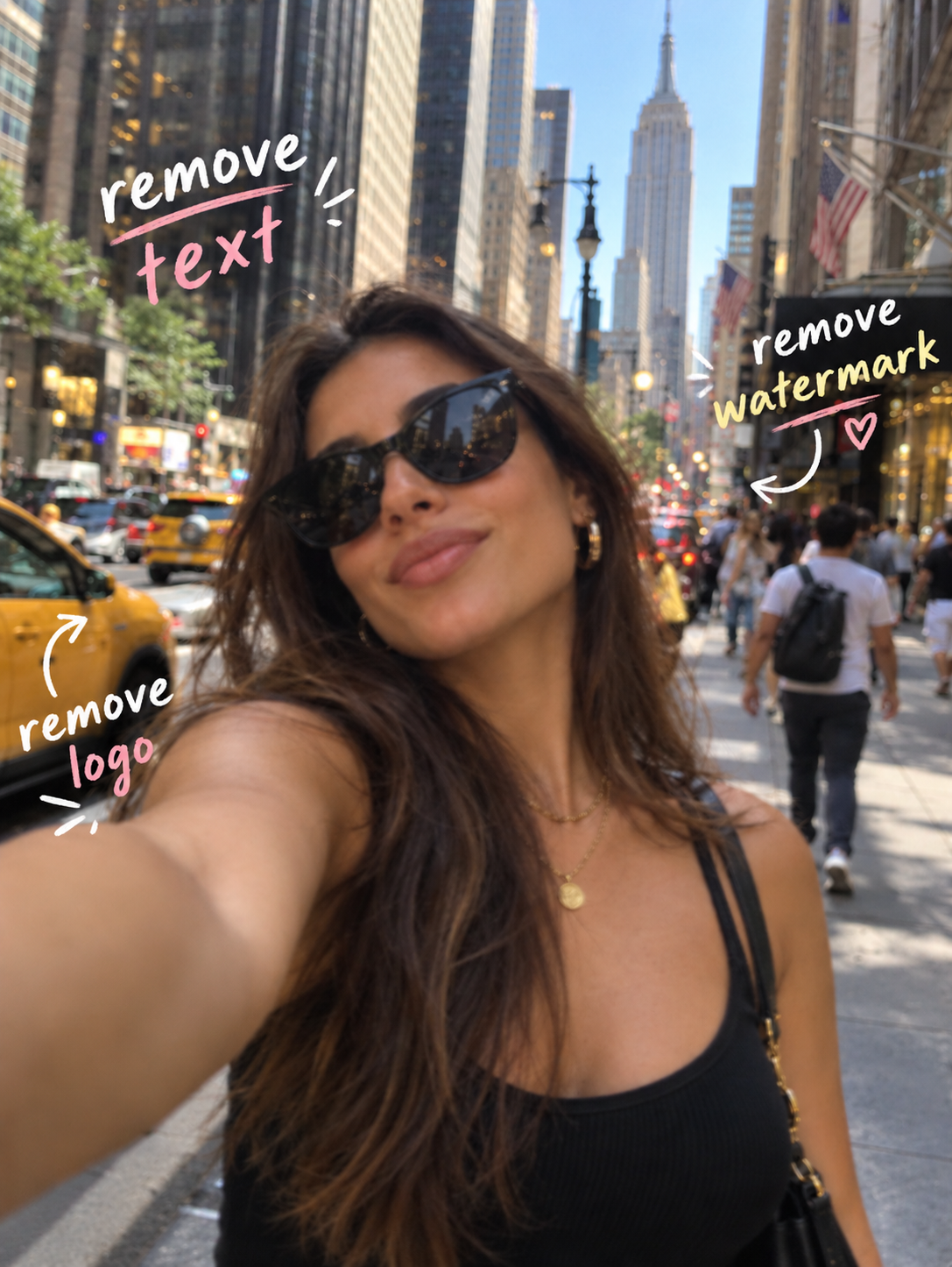

Burned-in subtitles belong to the image itself, so switching off a subtitle track cannot hide them. Select the subtitle band and match its time range to the words you want cleared.
Include outlines and drop shadows in the box; leaving their edges outside it can leave a visible trace.
Use separate ranges when text changes position, rather than repairing an unnecessarily large area throughout the clip.

The export uses the source average frame rate, helping the repaired clip fit back into an editing timeline. Re-encoding can alter bitrate and fine detail, so compare motion as well as a paused frame.
Inspect pans and fast movement after export, particularly if your recording uses a variable frame rate.
The processed region is composited back into the original canvas; check small details around the selection boundary.
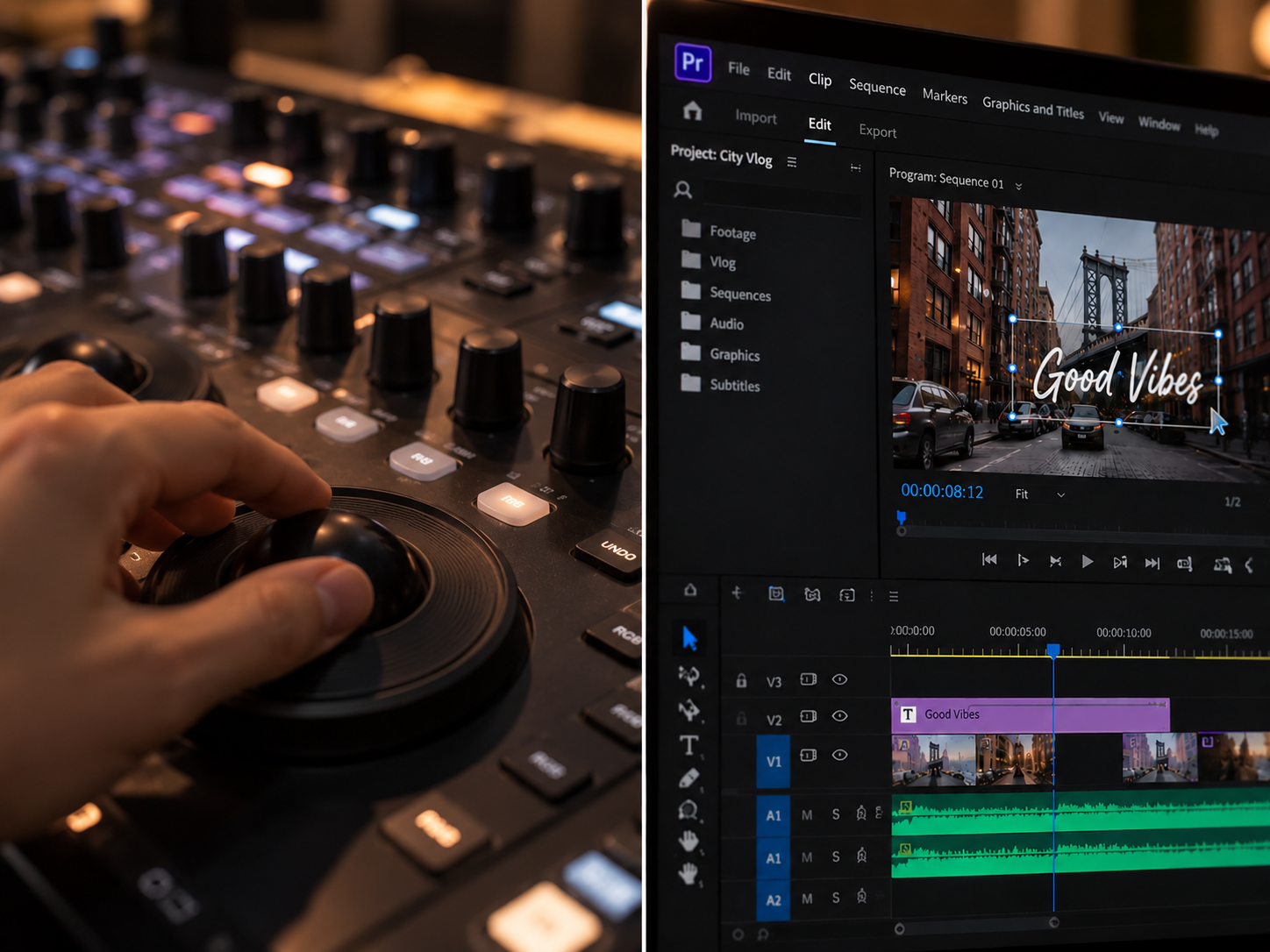
Clear a recording timestamp or an outdated label in footage you are allowed to edit. Keep the selection away from faces, hands and other details you want preserved whenever possible.
A tight repair region leaves room to reframe your finished shot for different publishing formats.
Review the exported clip in your browser before publishing. A graphic emblem may need a different editing approach from lettering.
Compare the selected area with its surroundings during playback. The laptop and workstation photographs illustrate editing workflows; they do not demonstrate the output quality of this tool.
UPLOAD → SELECT → REMOVE
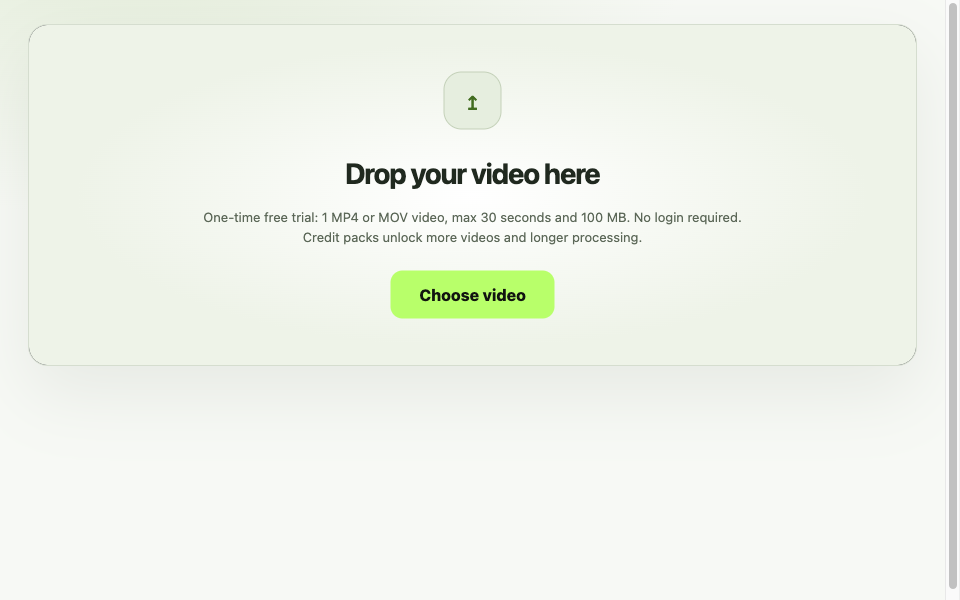
Pick an H.264 MP4 or MOV that plays correctly on your device. For the anonymous trial, use one clip within the 30-second and 100 MB limits.
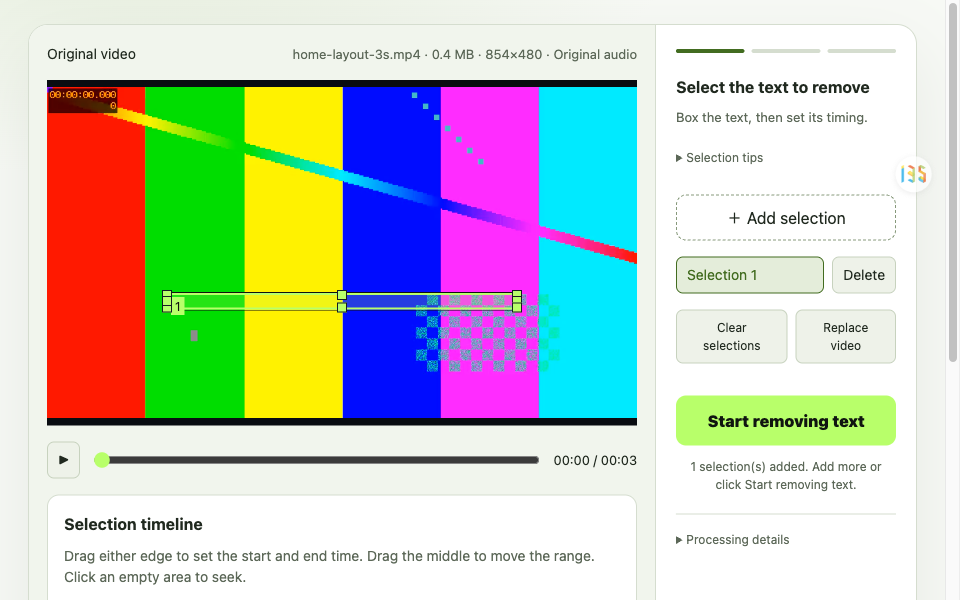
Pause on a clear frame, cover the complete text and its shadow, then adjust the selection range. Scrub the timeline to check whether the lettering moves outside your box.
Review edges → Save your export
Watch the repaired area in motion.Run the repair and watch the result around the first and last selected frames. Download the export after checking for leftover letters, edge flicker and unexpected changes in the background.
Match a pack to the total duration of footage you expect to edit. A shorter selection range does not reduce the charged video length. Plan for the full uploaded clip, even when lettering appears only briefly.
Packs are valid for 365 days. Applicable taxes are shown at checkout.
Format support is not a performance benchmark. The migration check recorded a successful 3-second, 854 × 480 H.264 sample, including upload, duration verification, processing and export. It did not establish an average turnaround time or a representative success rate.
| Format | Maximum resolution | Per-video duration limit | Average processing time | Success rate |
|---|---|---|---|---|
| H.264 MP4 | TODO: verify maximum with test exports | TODO: verify limits across trial and packs | TODO: measure repeated runs | TODO: measure a representative sample |
| H.264 MOV | TODO: verify maximum with test exports | TODO: verify limits across trial and packs | TODO: benchmark MOV input | TODO: benchmark MOV input |
TODO marks measurements still to collect, not a promise of capacity. The currently configured trial allows one video up to 30 seconds and 100 MB. WebM and HEVC are outside the supported input formats.
Upload your video to Video Text Remover, select the unwanted text and its time range, then let AI reconstruct the background. Preview and download the result.
Yes. Video Text Remover offers a one-time free trial for one video up to 30 seconds and 100 MB, with no sign-up required. For additional processing, see our Pricing page.
Yes. Video Text Remover can remove selected burned-in subtitles, captions, timestamps, and text watermarks. Results depend on the video background and movement.
Video Text Remover uses AI background reconstruction instead of a blur filter and preserves the original frame dimensions. Complex scenes may still show visual artifacts.
Video Text Remover supports H.264 MP4 and MOV videos. WebM and HEVC are not currently supported.